


What Is a Fake Webcam? How to Set One Up Free on Windows
A fake webcam (or virtual camera) streams a video or image to your apps instead of a live lens. Learn what it is, what it is for, and how to set one up free on Windows with FakeCam.
Stream any video, image, your screen or a loop of yourself as a webcam. Works with Zoom, Teams, Meet, and every app that uses a camera. No hardware needed.

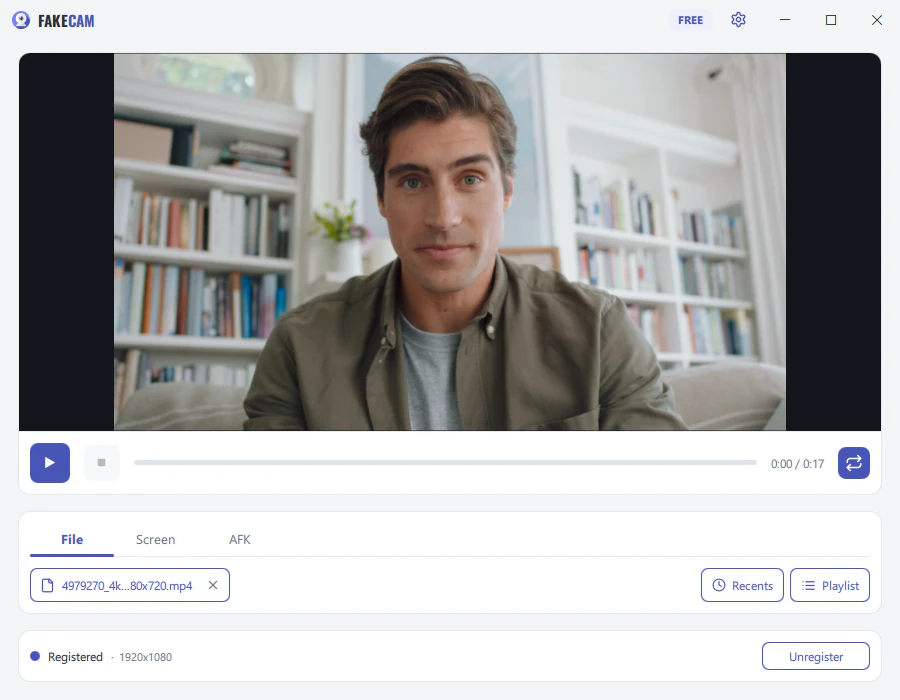
A virtual camera is a software camera your apps see just like a real webcam, except its picture comes from a source you choose instead of a lens. FakeCam is a free virtual camera for Windows: it streams a video, an image, your screen, or a live loop of yourself into Zoom, Teams, Meet, Discord and any app that uses a camera.
Exactly like the tabs in the app: pick what your camera shows.
Videos, still images and animated GIFs, looping if you want, alone or in a playlist with thumbnails that advances on its own.
The whole screen, with or without the taskbar, a region you draw, or a single window. Even in apps that have no screen sharing.
The AFK mode: record a short clip of yourself and let it cover your seat while you step away. An outline lines you up, and the cut back to live is seamless.
Three simple steps to get your virtual camera running.
Get FakeCam from the Microsoft Store or download it here, then run it. No account required, no signup.
Click Register once so Windows and your apps can see the camera. Windows asks to approve it a single time.
Pick a source: a video or image, your screen, or your AFK loop. Then open your favorite app and select FakeCam as your camera.
A complete virtual camera for Windows.
Every app that lets you pick a camera sees FakeCam as a normal webcam. No hardware to plug in, nothing to set up.
Works with Telegram, Zoom, Skype, Microsoft Teams, Google Meet, Discord, OBS, and every other application that accesses your webcam.
Mirror, rotate and stretch the picture, and pick the output resolution. The preview shows exactly what your apps receive.
FakeCam runs quietly in the system tray, and global hotkeys let you switch source or step away without leaving your call.
One-click camera registration. Drag and drop your video or image files. No complicated configuration required.
Small and light, it runs quietly in the background and never slows your PC down.
FakeCam is free to use, with no time limit. A single PRO purchase unlocks more, forever.
Stream any video or image as your webcam, in any app, on as many PCs as you like. No account, no time limit, no subscription.
A one-time purchase, yours forever. It removes the FakeCam watermark, and all future updates are free.
Get PROFakeCam is a virtual webcam application for Windows, free to use. It streams a video, an image, your screen or a recorded loop of yourself as a camera feed in apps like Zoom, Microsoft Teams, Google Meet, and any other application that uses a camera.
FakeCam works with almost any app that lets you choose a webcam, including Zoom, Microsoft Teams, Skype, Telegram, Google Meet, Discord and OBS.
Yes. FakeCam is free to use, with no time limit and no usage caps. An optional one-time PRO purchase unlocks extra features and removes the FakeCam watermark.
Click the Register button in the Virtual Camera section. Windows will prompt you for administrator permission. Once registered, FakeCam will appear as a camera device in all your applications.
A fake webcam (or virtual camera) streams a video or image to your apps instead of a live lens. Learn what it is, what it is for, and how to set one up free on Windows with FakeCam.

Use any video or image as your webcam on Windows, free. Learn how a virtual camera works and how to set it up in Zoom, Teams, Meet, Discord and OBS.

Virtual camera missing in Microsoft Teams? The new Teams may not list it. Fixes: use Teams in your browser, start the camera first, and check Windows camera permissions.