A virtual camera is a software camera your apps use just like a real webcam, except its picture comes from a source you choose instead of a lens. On Windows the simplest free virtual camera is FakeCam: it sends a video, an image, your screen or a live loop of yourself into Zoom, Teams, Meet, Discord and any app that uses a camera.
"Virtual camera" is the general name for this kind of software. You may also see "virtual webcam" or "fake webcam", which mean exactly the same thing. This guide explains what a virtual camera is, what you can feed into it, how to set one up free on Windows 10 or 11, and how the main options compare, including the honest trade-offs.
What is a virtual camera?
A virtual camera is a camera that exists in software instead of hardware. To any app that reads a webcam it looks like an ordinary camera device, but its picture does not come from a lens: it comes from a source you pick. When you select the virtual camera in a meeting app, that app sends your chosen picture into the call as if it were your webcam.
FakeCam registers one such camera on Windows and feeds it whatever you load. Because it looks like a normal camera, any app with a camera selector can use it. If you want the naming spelled out, see what is a fake webcam; the terms are interchangeable.
What can you use as your camera?
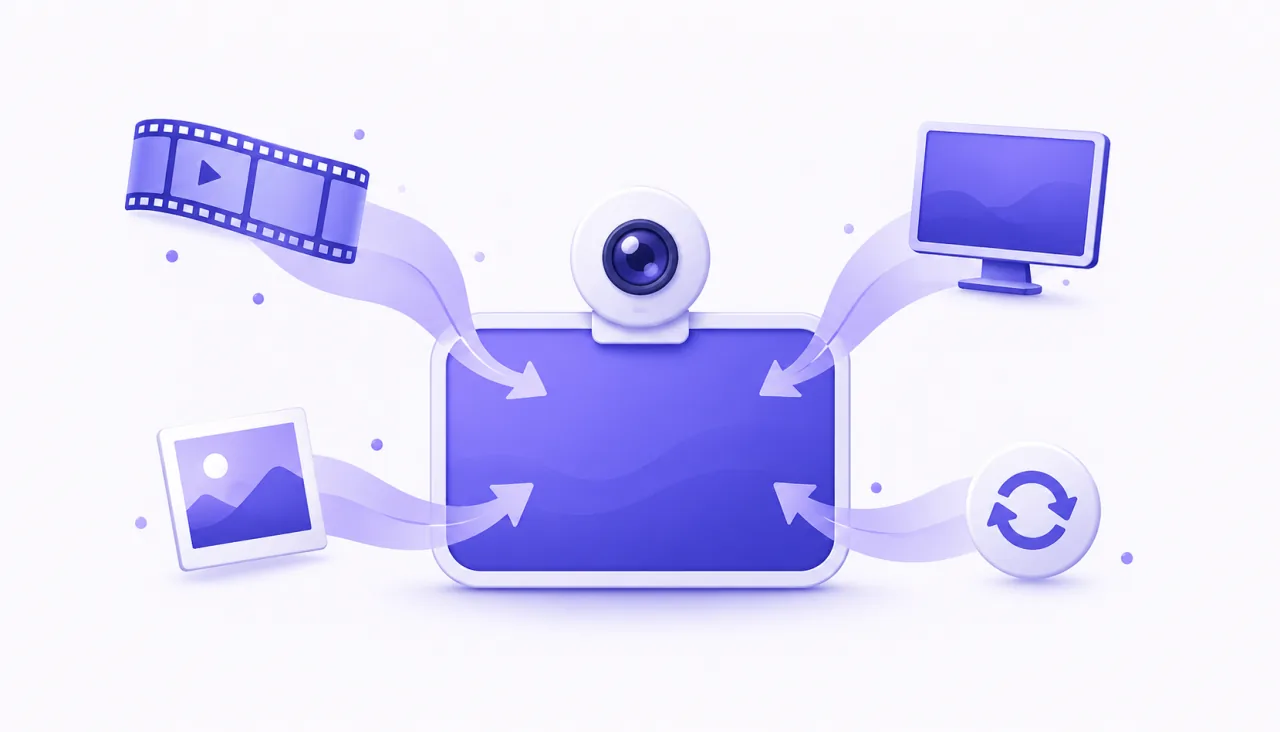
This is where a virtual camera is more flexible than a real webcam. With FakeCam the source can be any of these:
- A video file. Play an MP4 or other clip as your camera, looping seamlessly if you want. Good for demos, recorded talks and B-roll.
- A still image or animated GIF. Show a photo or a calm looping background instead of a live room.
- Your screen, a region or a single window. Turn your whole screen, a rectangle you draw, or one application window into the camera feed, even in apps that have no built-in screen sharing.
- A live loop of yourself (AFK mode). Record a few seconds of yourself sitting normally, and let it loop to cover your seat when you step away. An outline helps you line up, and the cut back to your real camera is seamless.
That last one is unusual: most virtual cameras only play a file. Being able to use your screen or a short presence loop is what makes FakeCam useful beyond simple video playback.
How to set up a virtual camera on Windows
On Windows the simplest free option is FakeCam. It works on Windows 10 and 11, with no account.
- Download FakeCam and register its virtual camera. This is a one-time click that asks for administrator permission so Windows can add the camera device.
- Pick a source: drop in a video or image, choose your screen or a window, or record an AFK loop. The preview shows exactly what your apps will receive.
- Press Play (or Start for a screen or AFK source).
- Open your meeting app and choose FakeCam in its camera settings.
For a step-by-step walkthrough with screenshots, see how to use a video or image as your webcam.
Which apps work with a virtual camera on Windows?
FakeCam presents a standard Windows camera, which the large majority of desktop apps support. A few very new apps read only the modern camera type and may not list it.
| App | Works with FakeCam | Notes |
|---|---|---|
| Zoom (desktop) | Yes | Pick FakeCam in Settings > Video |
| Microsoft Teams (desktop) | Yes | Use the desktop app, and start FakeCam first |
| Google Meet | Yes | Choose FakeCam in the camera menu |
| Discord | Yes | Start FakeCam before opening Discord |
| OBS Studio | Yes | Add it as a video capture device |
| Skype | Yes | Select it in the video settings |
If your app does not list the camera, start FakeCam and press Play before opening the app, because most apps read the camera list only at launch. If it still does not show in Teams, see virtual camera not showing in Teams. For Google Meet, see virtual camera not showing in Google Meet.
The best free virtual camera software for Windows, compared
There is more than one virtual camera for Windows. Here is an honest comparison of the common free options for the everyday job of playing a video, image or screen as your camera.
| Tool | Free | Plays a video or image | Screen or window | Works in any app | Windows 10 | Watermark on the free feed |
|---|---|---|---|---|---|---|
| FakeCam | Yes | Yes | Yes | Yes | Yes | Small mark, removed by a one-time PRO |
| OBS Studio | Yes | Needs a scene setup | Yes | Yes | Yes | None |
| ManyCam (free tier) | Partly | Yes | Yes | Yes | Yes | Yes |
| Webcamoid | Yes | Yes | Limited | Yes | Yes | None |
The honest read: OBS Studio is free and puts no mark on the feed, but it is a full studio, so you build a scene, add a media source, set it to loop and then start the virtual camera. Webcamoid is free and open source, more of an effects suite than a quick file player. ManyCam plays a file too, but its free tier stamps a watermark on the picture, which is why people look for a free ManyCam alternative. FakeCam is the lightweight, dedicated option that also does screen, window and AFK; its free version adds a small FakeCam watermark that a one-time PRO purchase removes. If you want a completely unmarked free feed and do not mind the setup, OBS is the answer; if you want the fastest, simplest camera, a dedicated tool wins. For the OBS trade-off in detail, see using a video as your webcam without OBS.
Does a virtual camera work on Windows 10 and 11?
Yes. FakeCam runs on both Windows 10 and Windows 11. This is worth checking before you pick a tool, because some newer virtual cameras require Windows 11 only. FakeCam supports Windows 10, so an older PC still works.
What a virtual camera cannot do
A virtual camera is a normal, useful tool, but it is honest to be clear about its limits:
- It is not a face filter or a deepfake. FakeCam shows the video or image you choose; it does not change your face or pretend to be another person.
- Audio is separate. A virtual camera replaces your camera picture, not your microphone. A video's own sound is not sent into the call as your mic.
- A few apps may not list it. Apps that read only the modern camera type, rather than the standard one, may not show it.
- It is not for deception. Using a virtual camera is fine for demos, privacy, testing and content, but do not use it to impersonate someone, and note that some exams and identity checks forbid virtual cameras.
For most people who just want to play a video, show an image, share a screen or hold their seat during a call, a free virtual camera like FakeCam is the quickest way to do it on Windows. Download FakeCam to set one up in a couple of minutes.