

To show a photo instead of your live camera, do not rely on the Zoom or Teams profile picture: that only appears when your camera is off, and it is small and low resolution. Instead, load your image into a free virtual camera like FakeCam and select it as your camera. Your photo then fills the frame as a real, full-size webcam feed, with your camera switched on.
Why the profile picture is not what you want
On Zoom, Microsoft Teams and Google Meet, the profile picture only shows when your camera is off. The moment your camera turns on, the app goes back to your live video and never the picture. It is also capped in size and low resolution. So if you want a clean, full-frame image to appear as your camera, the built-in profile picture simply cannot do it.
A virtual camera solves this: it hands your chosen image to the app as if it were an ordinary webcam.
How to use a photo as your webcam
- Download FakeCam and register its virtual camera (one click).
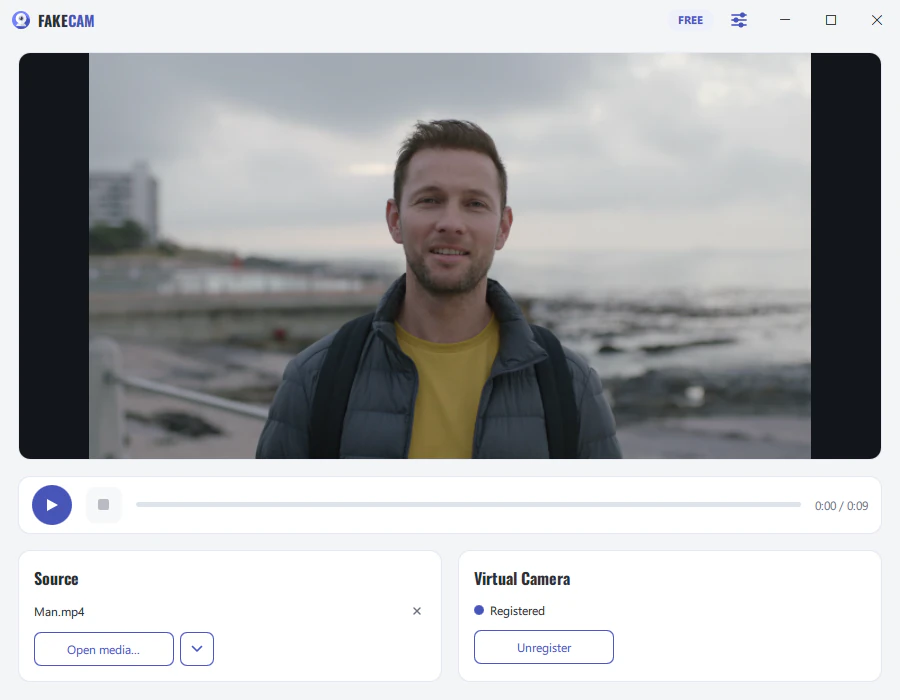
- Drag your image (PNG, JPG or BMP) into the FakeCam window. The preview shows it right away.
- Press Play so FakeCam streams the image to the virtual camera.
- In Zoom, Teams, Meet or any other app, open the camera settings and choose FakeCam.
Your photo now fills the whole frame, at camera resolution, with your camera on.
Does it work in Zoom, Teams and Google Meet?
Yes. Because FakeCam appears as a normal camera, any app with a camera selector can use it.
| App | Shows your photo as the camera | Note |
|---|---|---|
| Zoom (desktop) | Yes | Settings > Video > Camera > FakeCam |
| Microsoft Teams (desktop) | Yes | Use the desktop app, not the browser |
| Google Meet | Yes | Camera menu > FakeCam |
| Discord, OBS, Skype | Yes | Pick FakeCam as the camera |
Tips for a clean result
- Use an image at your camera resolution (for example 1280x720 or 1920x1080) so it fills the frame with no bars.
- A simple, well-lit image reads best on a small call tile.
- You do not need Loop for a still image; FakeCam just holds the picture on screen.
Good reasons to show an image instead of your camera
- Privacy: keep your room and face private while staying present with a chosen image.
- A clean, professional look: show a tidy headshot or a branded card instead of a messy background.
- Low bandwidth: a still image is steadier than live video on a weak connection.
- Be right back: show a clear "back in 5 minutes" image instead of an empty black square.
FakeCam simply shows the image you pick. It does not add filters or effects, and it is not meant to impersonate anyone.