To use a video as your webcam on Discord, install FakeCam, load your video and press Play, start FakeCam before you open Discord, then pick FakeCam in Discord under Settings > Voice & Video. Discord then shows your video instead of your real camera, no OBS needed. Here is the full setup.
What you need
- A Windows PC (Windows 10 or 11)
- FakeCam installed with its virtual camera registered
- The video or image you want to show (MP4, AVI, PNG, JPG and more)
Set it up in Discord
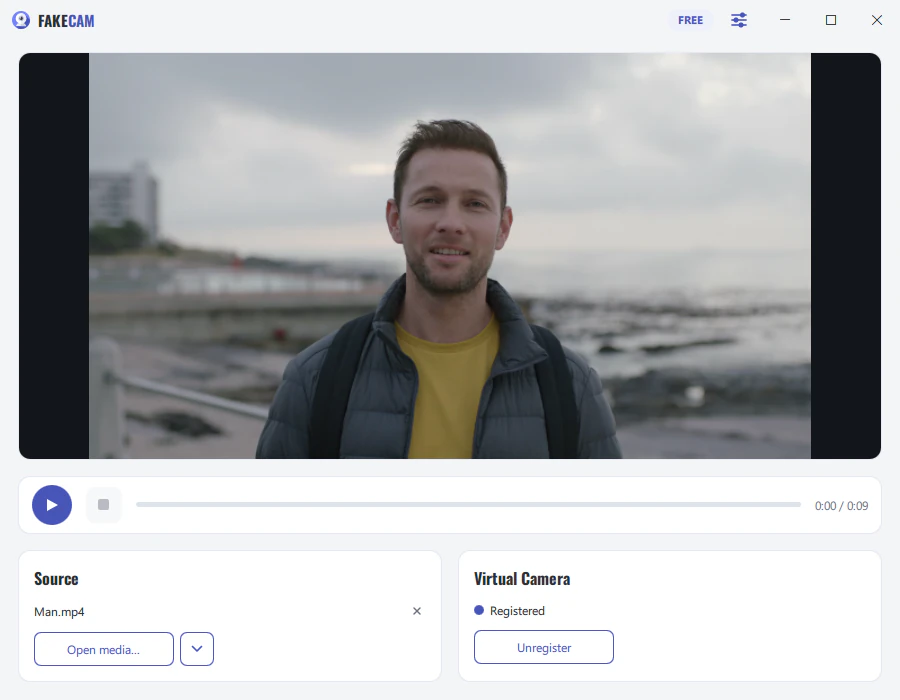
- Open FakeCam, drag in your video, and press Play (turn on Loop if you want it to repeat).
- Start FakeCam before opening Discord. Discord reads the camera list when it launches, so FakeCam must already be running.
- In Discord, go to Settings > Voice & Video, and under Camera choose FakeCam.
- Join a call and turn your camera on. Your video now plays as your camera.
If FakeCam does not appear in Discord
- Quit Discord completely (right-click its tray icon, then Quit), make sure FakeCam is playing, and open Discord again.
- If the camera fails to start, turn off Hardware Acceleration in Discord (Settings > Advanced) and restart Discord.
- Make sure the FakeCam virtual camera is registered.
A note on camera vs Go Live
FakeCam replaces your camera, so it works anywhere Discord uses a camera (calls, video, server video). Discord's Go Live screen share is separate: there you share a window or screen, not the camera.