

To loop a video as your webcam, load the clip in FakeCam, turn on Loop, press Play, then pick FakeCam as your camera in Zoom, Teams, Meet or any app. The video repeats seamlessly as your live camera, so a short clip plays as a looping fake webcam video with no visible cut at the end. Here is the full setup, free, on Windows.
What you need
- A Windows PC (Windows 10 or 11)
- FakeCam installed with its virtual camera registered
- The video clip you want on repeat (MP4, AVI and more)
Loop a video as your webcam in 3 steps
- Open FakeCam and drag your video into the window. The preview appears right away.
- Turn on Loop, then press Play. The clip now repeats end to end.
- In your meeting or streaming app, choose FakeCam as the camera.
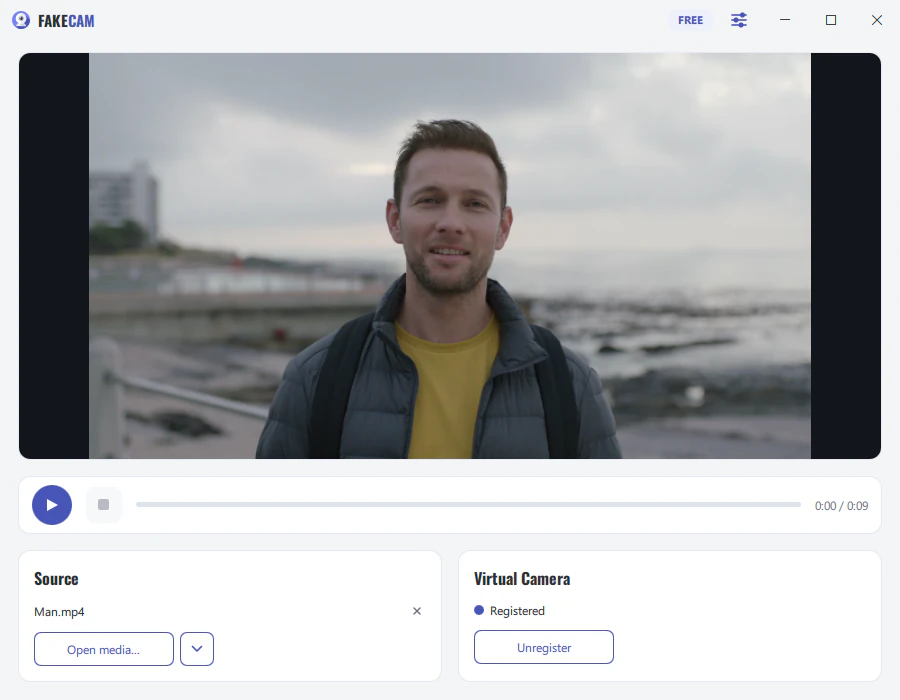
That is it. Your video plays on repeat as your camera for as long as you need.
Why loop a video instead of a live camera
- Presentations and demos: keep a product clip or slideshow running as your camera.
- A consistent presence: show a calm, professional loop instead of your live room.
- Backgrounds and B-roll: loop branded footage for streams or events.
- Privacy: stay on camera without being on your live camera.
Tips for a seamless loop
- Use a clip whose first and last frames match (or fade), so the repeat is invisible.
- Match your camera resolution (for example 1280x720) so it fills the frame with no bars.
- Keep it short: a 10 to 30 second loop is plenty for most uses.
FakeCam loops any file natively, so you do not need OBS (which needs a scene, a media source set to loop, and a separate virtual-camera start). For a simple repeating clip, a dedicated tool is faster.