

To use a video as your webcam in Zoom, install FakeCam (a free Windows virtual camera), load your video, press Play, then pick FakeCam in Zoom under Settings > Video. Everyone in the call sees your video instead of your real camera. Here is the full setup in four steps.
What you need
- A Windows PC (Windows 10 or 11)
- FakeCam installed with its virtual camera registered
- The video or image you want to show (MP4, AVI, PNG, JPG and more)
Set it up step by step
- Open FakeCam and drag your video or image into the window. The preview appears right away.
- Press Play to start streaming the file to the virtual camera.
- Open Zoom, then go to Settings > Video.
- In the Camera dropdown, choose FakeCam.
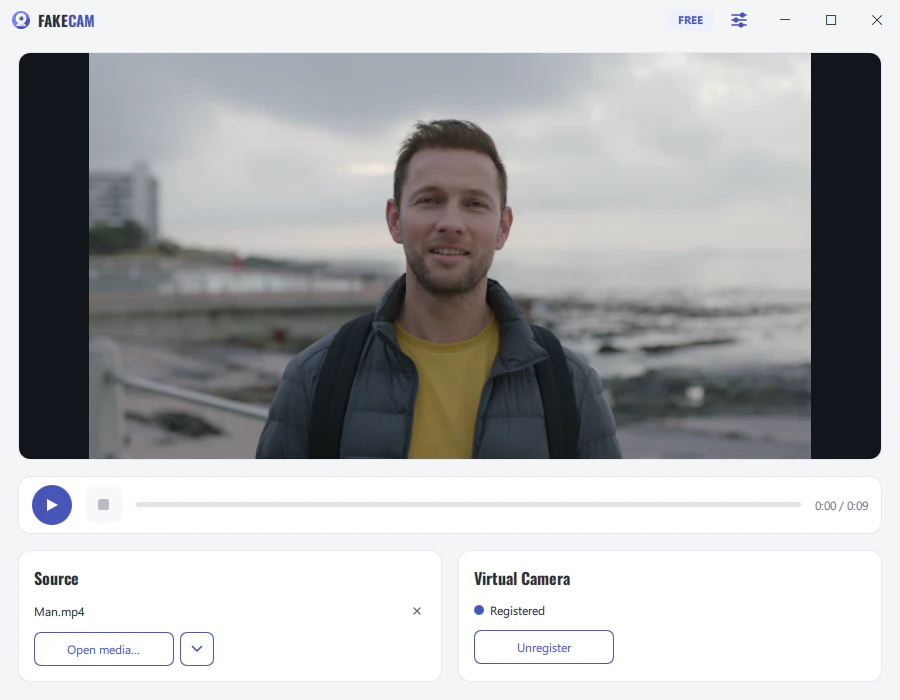
That is it. Your video now plays as your camera in the meeting. Turn on Loop in FakeCam if you want the clip to repeat without a visible cut.
Tips for a clean result
- Use a video recorded at the same resolution as your camera (for example 1280x720) to avoid black bars.
- Enable Mirror only if your footage looks reversed.
- If Zoom still shows your real webcam, quit Zoom completely and open it again so it re-reads the camera list.
How it compares to other methods
| Method | Free | Works in any app | Loops a video |
|---|---|---|---|
| FakeCam | Yes | Yes | Yes |
| Sharing your screen | Yes | Limited | No |
| A capture card | No | Yes | No |
FakeCam is the simplest way to send a video to a meeting without extra hardware or a full studio setup.