
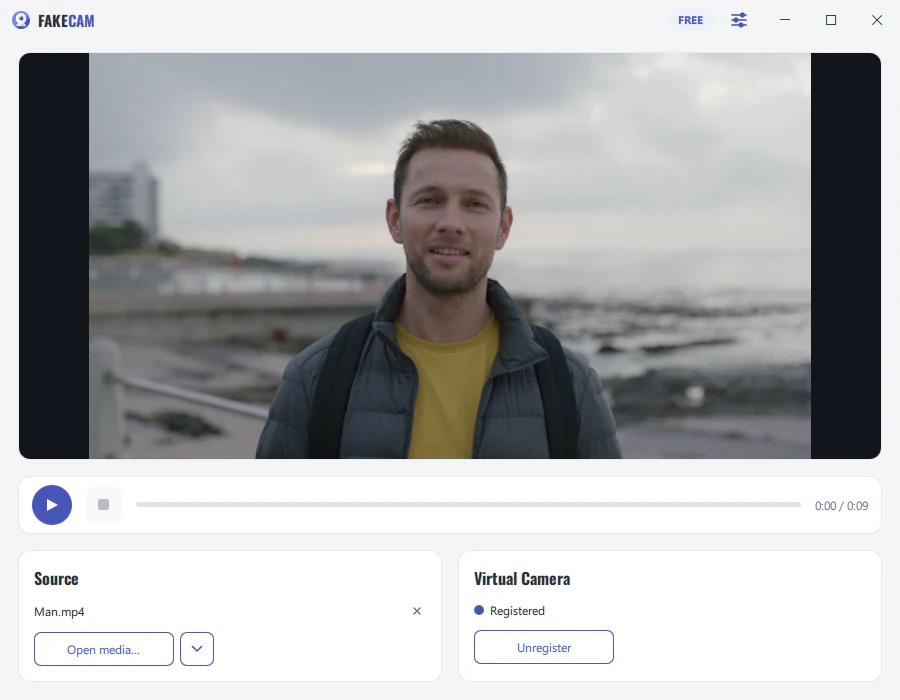
To use a video as your webcam in Google Meet, install FakeCam, load your video and press Play, then open Meet in your browser and choose FakeCam as the camera under Settings > Video. Meet shows your video instead of your real camera, no OBS needed. Because Meet runs in the browser, it is one of the easiest apps to set up with a virtual camera. Here is the full walkthrough.
What you need
- A Windows PC (Windows 10 or 11)
- FakeCam installed with its virtual camera registered
- Chrome, Edge or Firefox. Meet has no separate Windows program: the Meet "app" you can install from Chrome is the same site in its own window
- The video or image you want to show (MP4, AVI, PNG, JPG and more)
Set it up in Google Meet
- Open FakeCam, drag in your video, and press Play (turn on Loop if you want it to repeat).
- Start FakeCam before you open Meet. The browser reads the camera list when the page loads. If Meet was already open, reload the tab.
- In Meet, on the preview screen before you join, click the Settings gear (in a call: More options > Settings), open Video, and under Camera choose FakeCam.
- Join the meeting with your camera on. Your video now plays as your camera.
Meet remembers the camera you picked, so next time you only need to start FakeCam first.
If Meet asks for camera permission
The first time, the browser asks whether meet.google.com may use your camera: click Allow. If you blocked it once, click the camera icon at the right end of the address bar, allow the camera, and reload the page. You can also pick the camera there: that icon sets the default camera for the site.
Three things worth knowing
- Your self-view is mirrored, the others see it the right way round. Meet flips your own preview like a mirror, as it does with a real camera. Nobody else sees it mirrored, so if text in your video looks reversed, it is only on your side.
- Meet's visual effects still apply. Background blur and effects are applied to whatever camera you choose, FakeCam included. Turn them off if you want the video exactly as you loaded it.
- Camera and screen sharing are separate. FakeCam replaces the camera. "Present now" shares a window or your screen and does not use the camera at all.
If FakeCam does not appear
Start FakeCam and press Play, then reload the Meet tab. If it is still missing, see virtual camera not showing in Google Meet for the Windows and browser permission checks.