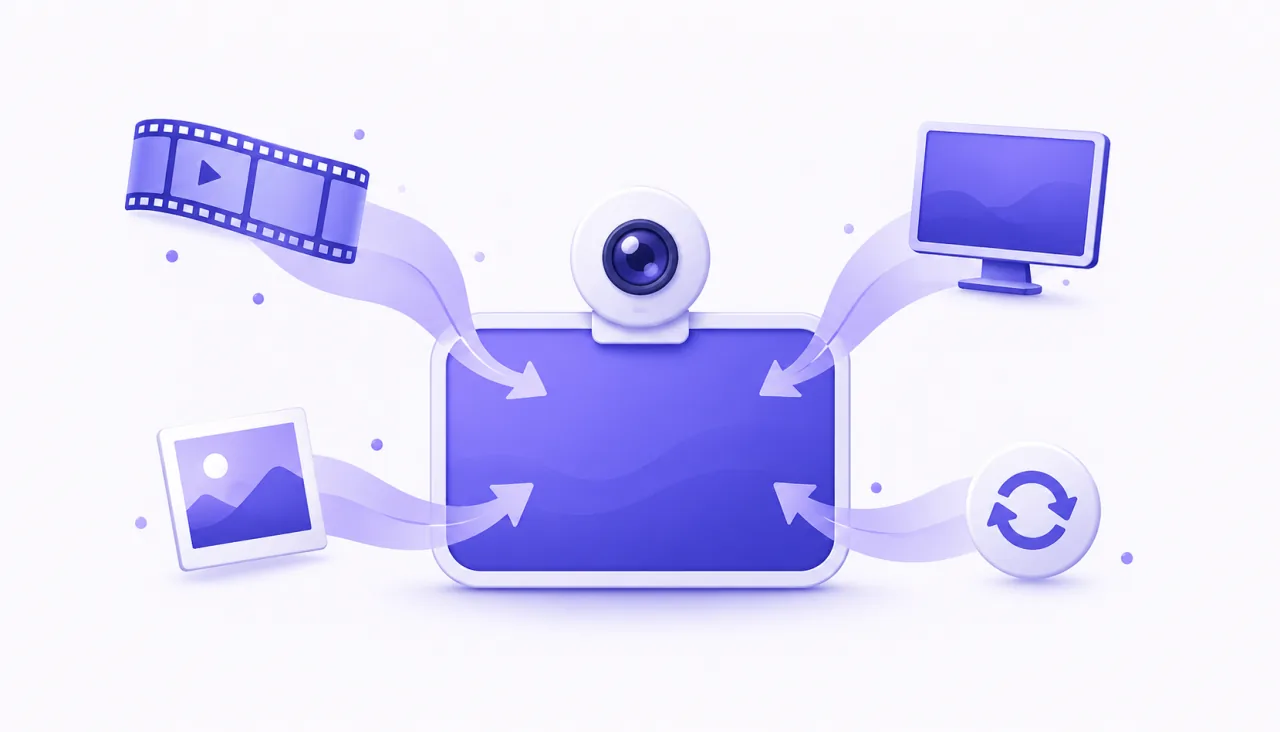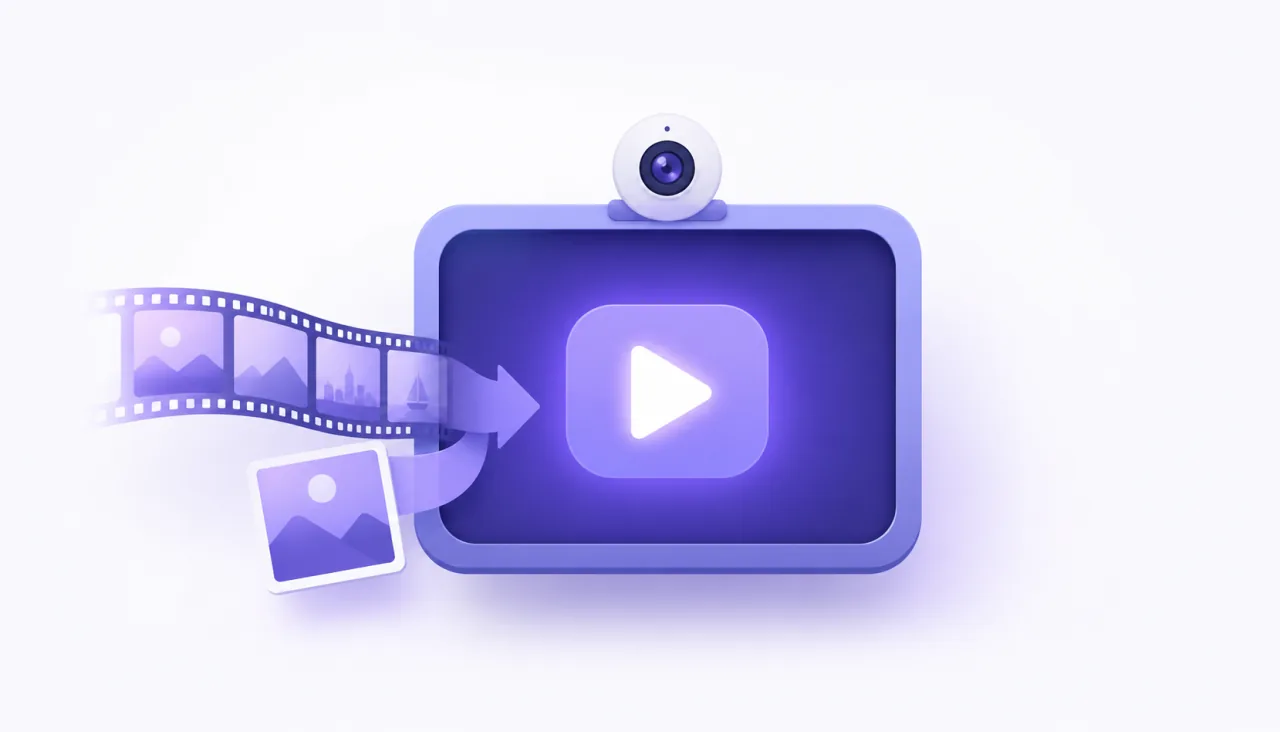
A webcam simulator is a virtual camera that feeds a known video, image or screen into any app as if it were a real webcam, so you can test camera features with the same input every time. On Windows, FakeCam does this for free: load a test clip or a pattern, press Play, and pick FakeCam as the camera in the app you are testing. No lighting, no lens, no surprises, and the exact same frames on every run.
Why simulate a webcam instead of using a real one?
A real webcam is the worst possible test fixture. Its picture changes with the light, the time of day, who is sitting in front of it, and whether the lens cap is on. For testing you want the opposite: an input that is deterministic (identical frames every run), repeatable (any tester, any PC, same result), and controllable (you choose the resolution, the motion, the aspect ratio, even a black frame). A webcam simulator gives you exactly that:
- QA of video features. Camera preview, snapshot, recording, background blur, face detection, QR scanning, video calls: run each one against a clip you know frame by frame.
- Reproducing a bug. A customer's "the camera shows a black picture" is reproducible when you can feed a black frame on purpose.
- Edge cases on demand. Portrait video, 4:3 input in a 16:9 preview, very high motion, a still frame that never changes, a 640 x 480 source: each is a file you keep.
- Demos and training. The demo camera shows the same polished clip in every session, whatever the room looks like.
- Machines with no camera. A desktop PC, a build agent someone tests on by hand, a VM: a virtual camera gives them one.
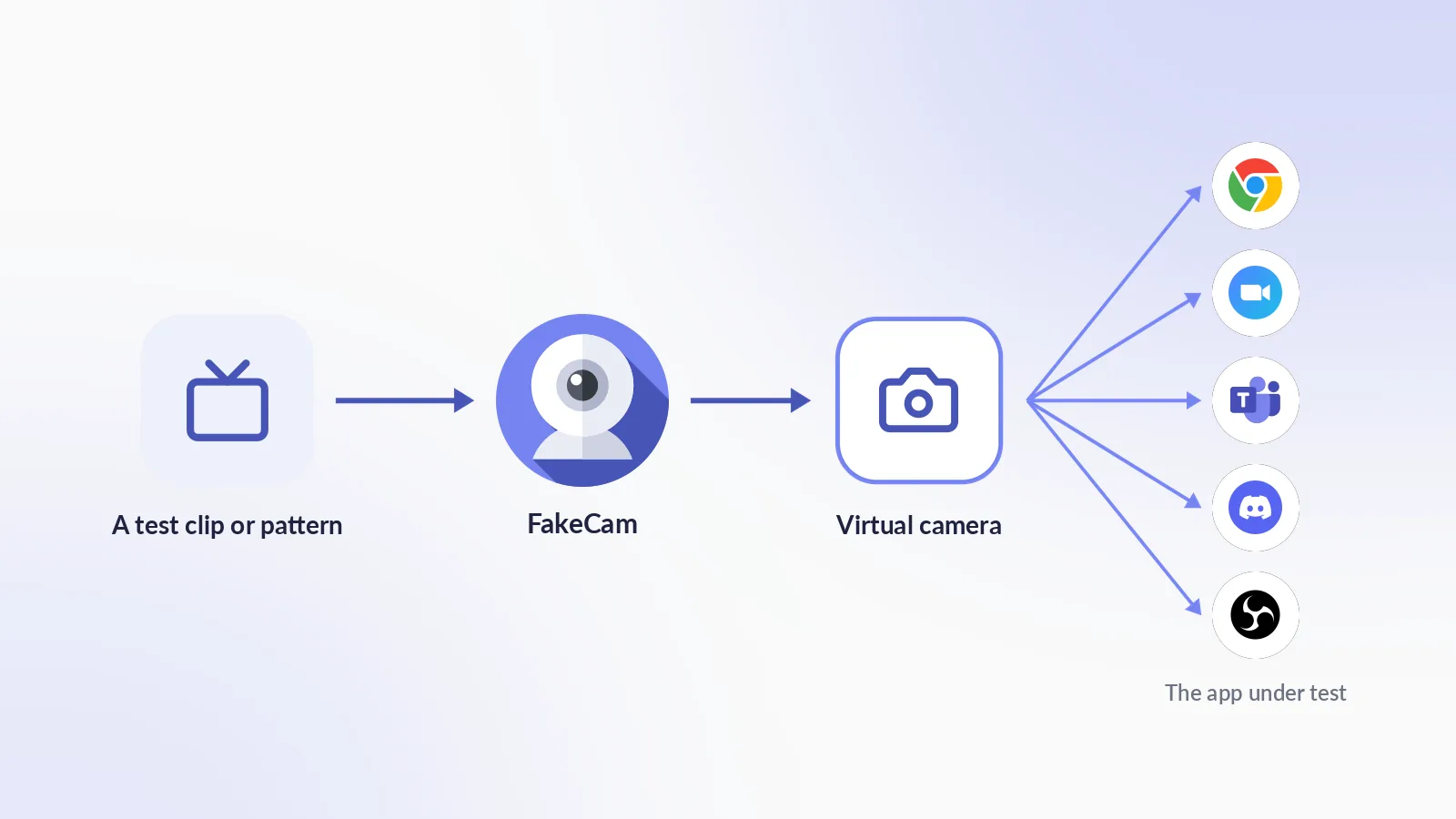
What you need
- A Windows 10 or 11 PC (physical or a VM with a desktop session).
- FakeCam, free. It registers one virtual camera named "FakeCam".
- Your test inputs: a video file (MP4, MOV, AVI, WMV, MKV), an image (PNG, JPG, GIF, BMP), or the screen itself.
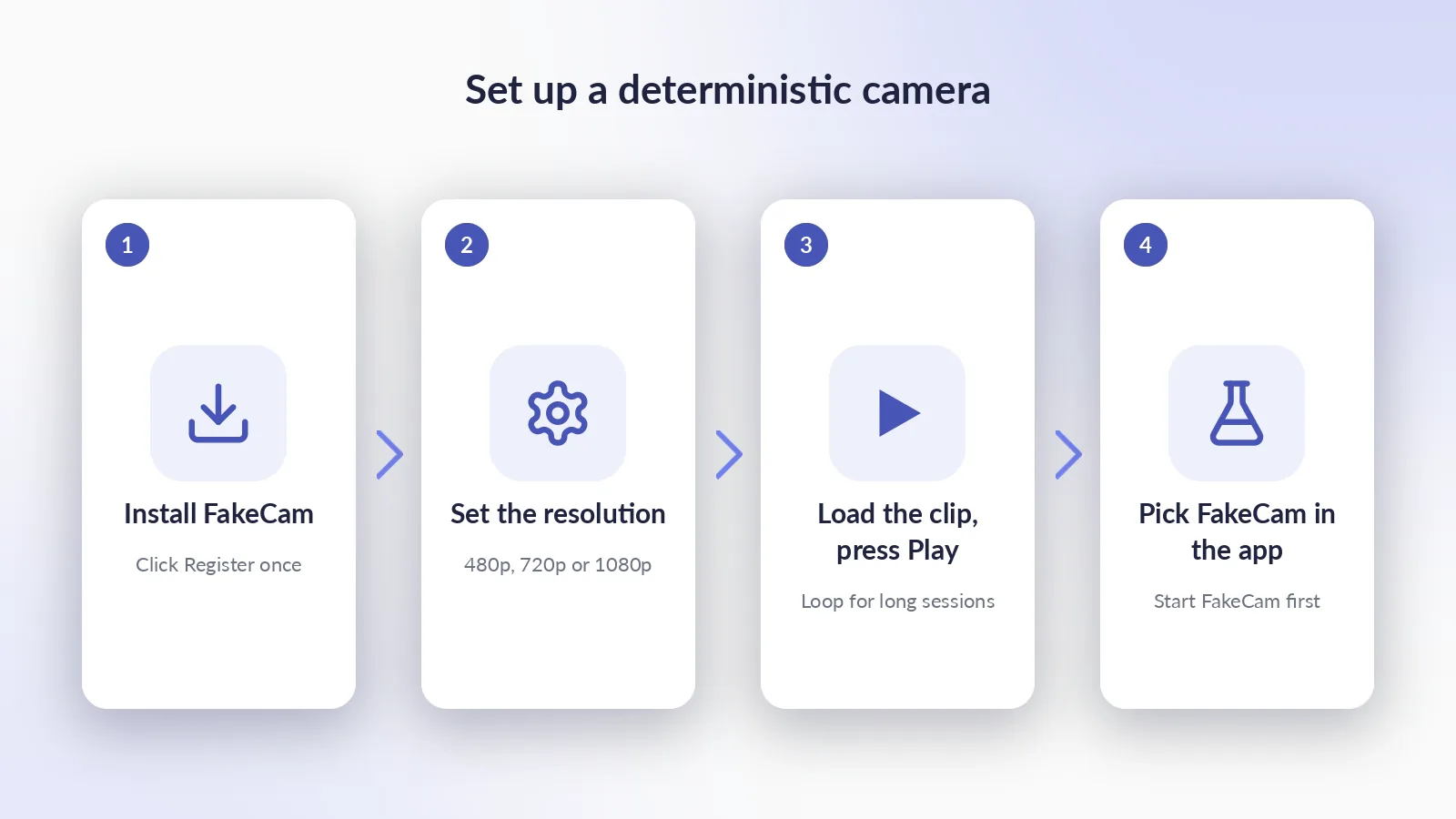
Set up the webcam simulator in 4 steps
- Install FakeCam and click Register once so Windows adds the camera (one administrator prompt, then never again).
- In Settings, set the camera Resolution the app under test should receive: 640 x 480, 1280 x 720 or 1920 x 1080. This is what the app will enumerate.
- Drag your test clip or pattern into FakeCam and press Play. Turn on Loop for a clip that must run for the whole test session.
- In the app under test, pick FakeCam as the camera. Start FakeCam before the app: most apps read the camera list only when they launch.
To switch inputs mid-test, drop another file into FakeCam: the app keeps the same camera and just receives the new frames. To test "no camera" or "camera unplugged" paths, press Stop or unregister the camera.
A test kit worth keeping
Four inputs cover most camera test cases. Keep them in a folder next to your test plan.
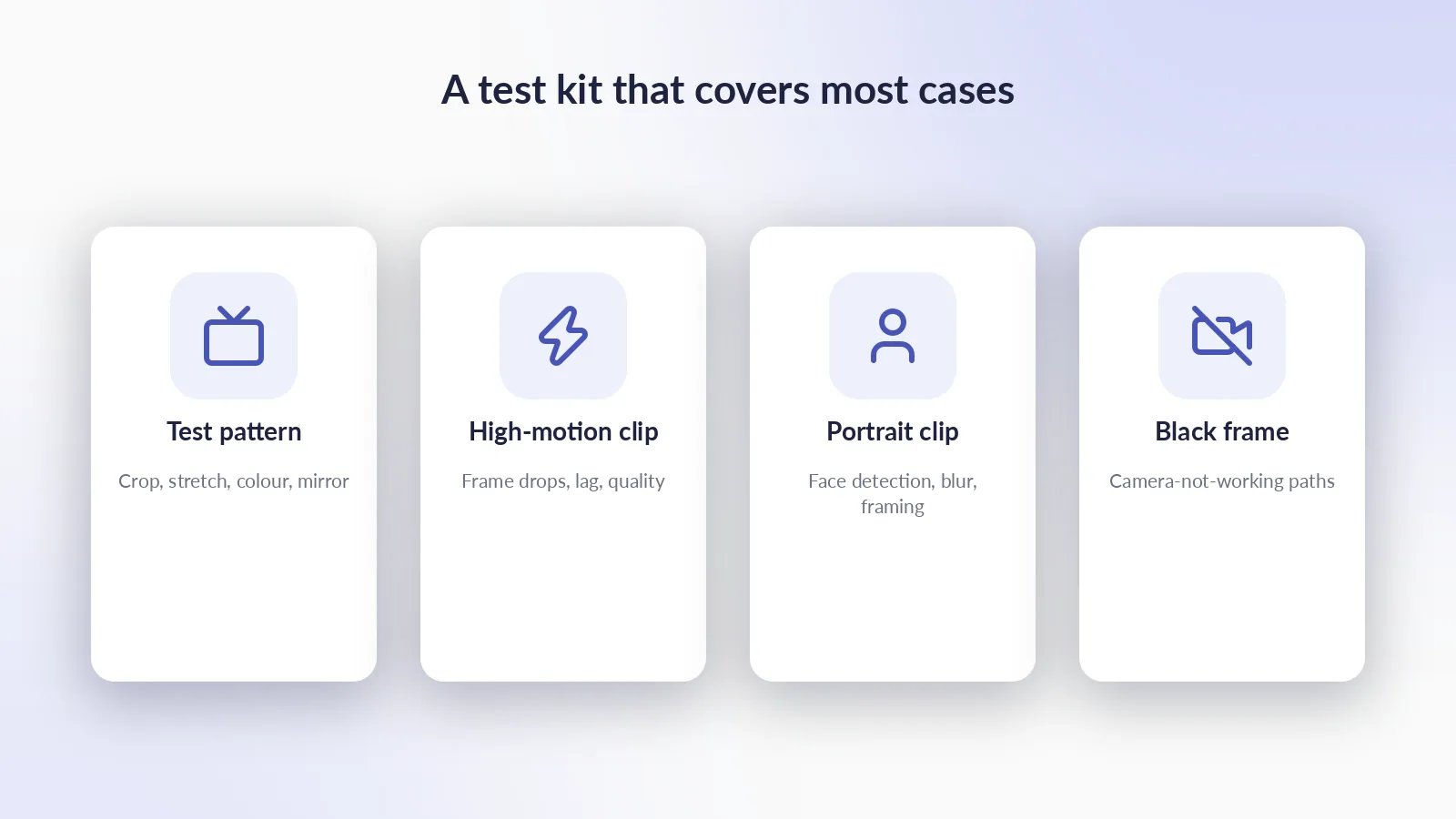
| Input | What it catches |
|---|---|
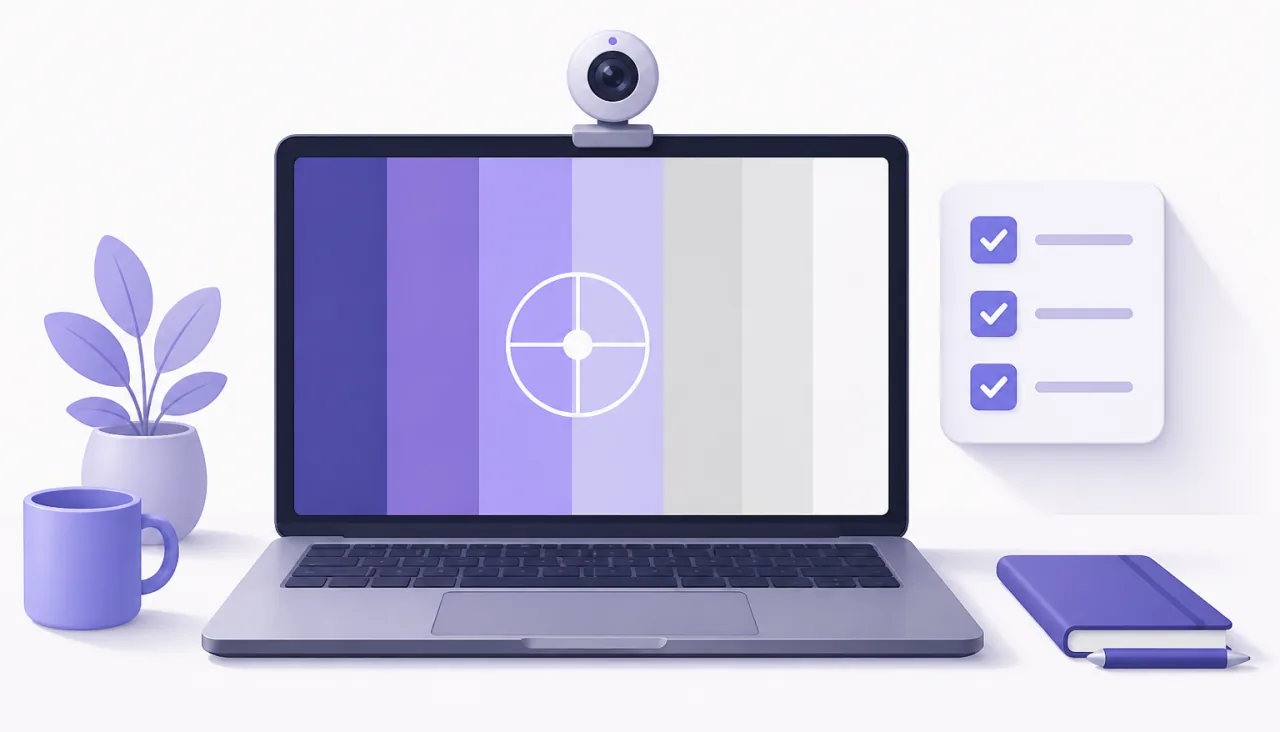
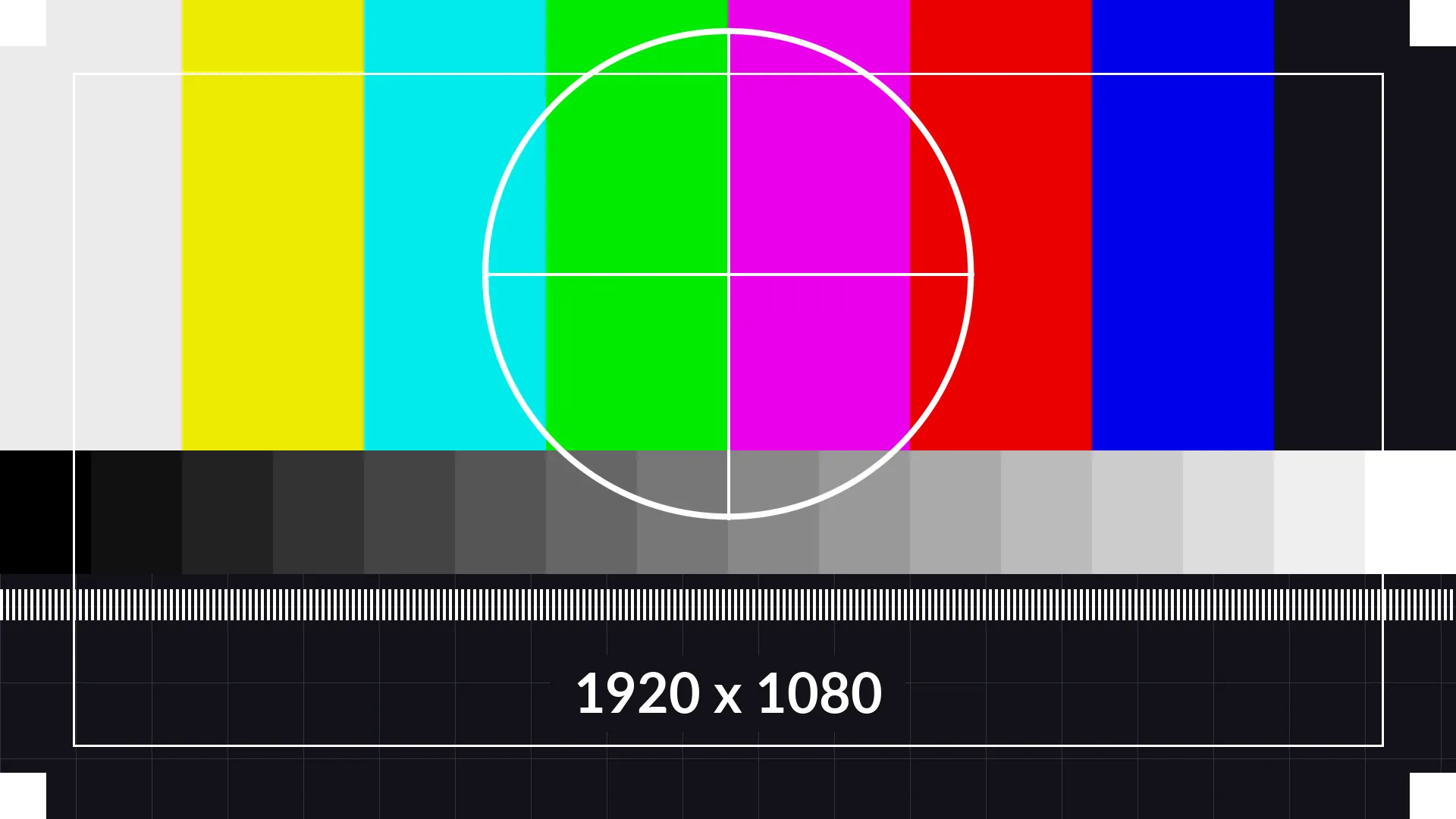
| A test pattern (colour bars, a circle, a grid) | Cropping, stretching, wrong aspect ratio, colour shifts, mirroring: a circle that comes out as an oval or a bar that is cut off is visible at a glance |
| A high-motion clip (fast pan, moving detail) | Frame drops, encoder quality, latency in a call, a preview that lags behind the camera |
| A portrait clip (one person, steady light) | Face detection, background blur and replacement, auto-framing, ID-verification flows in your own product |
| A black frame or a still image | "Camera not working" support paths, no-motion detection, screenshot and snapshot features |
Save the pattern below and play it through FakeCam; it is drawn to be text-free so it works in every language of your test team.
Simulator vs Chrome's fake camera flags
If you only test a web app in an automated browser, Chrome and Edge have a built-in fake camera: launch the browser with --use-fake-device-for-media-stream and, to feed your own file, --use-file-for-fake-video-capture=clip.y4m. Playwright and Puppeteer wire these flags for you. That is the right tool for CI. It stops at the browser, though: nothing outside that browser process sees a camera.
A virtual camera such as FakeCam works at the Windows level, so every app sees it: desktop apps, Electron apps, the Windows Camera app, a video call in a real Zoom client, and a normal browser session started by a human tester. The honest comparison:
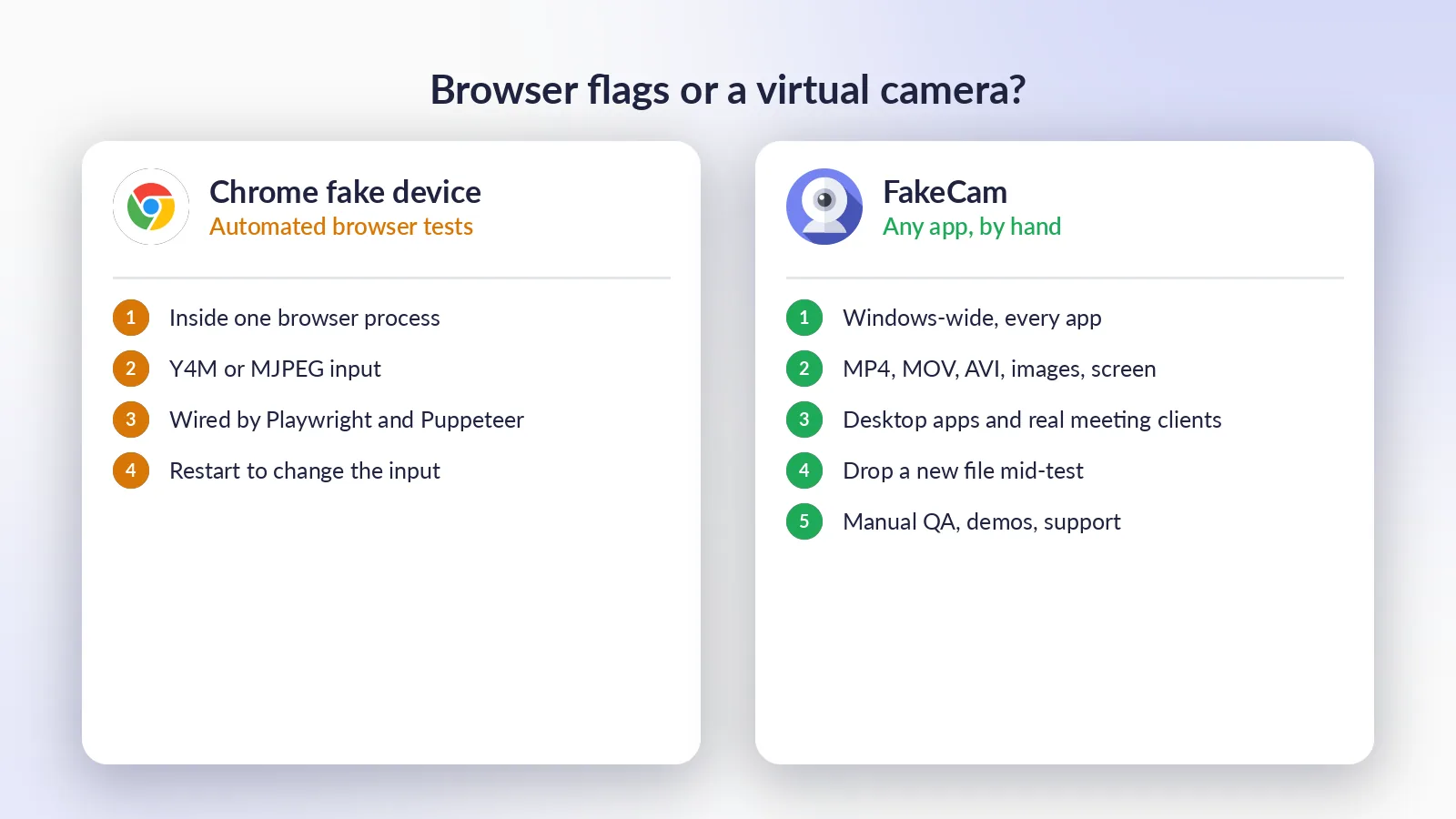
| Chrome fake device flags | FakeCam virtual camera | |
|---|---|---|
| Where the camera exists | Inside that browser process only | Windows-wide, any app |
| Input formats | Y4M / MJPEG files | MP4, MOV, AVI, WMV, MKV, images, the screen |
| Automated tests (CI) | Yes, built for it | No: FakeCam is driven by hand |
| Manual QA of desktop apps | No | Yes |
| Real meeting clients (Zoom, Teams, Discord) | No | Yes |
| Change the input mid-test | Restart the browser | Drop a new file |
| Cost | Free | Free (one-time PRO optional) |
Use both: the flags in your pipeline, the virtual camera for exploratory testing, desktop apps, support reproductions and demos.
Tips for reliable results
- Match resolutions on purpose. Test each resolution the app supports by changing FakeCam's Resolution setting, then restarting the app: many apps enumerate formats once.
- Use Loop for long sessions. A looping clip keeps the camera "live" for as long as the test runs; a clip that ends leaves the last frame on screen.
- Mirror is a test case too. Meeting apps mirror the self-view but not what others see. FakeCam's Mirror switch lets you check both.
- Screen as input. Pick the Screen tab to feed a live app window (a timer, a QR code page) into the camera, useful for scanning features. Details in use your screen as your webcam.
- One app at a time. A camera can be opened by one app at a time. Close the previous app's preview before starting the next test.
What a webcam simulator does not do
- No scripting or command line. FakeCam is a manual tool: you load files by hand. For scripted browser tests, use the Chrome flags above.
- No audio. A virtual camera replaces the camera picture only. Test the microphone path separately.
- Not a virtual camera for mobile. It runs on Windows. For Android, the emulator's virtual scene camera covers similar ground.
- Not for cheating a verification. A webcam simulator is a testing and demo tool. Using it to defeat someone else's identity check is not what it is for, and several services forbid it.