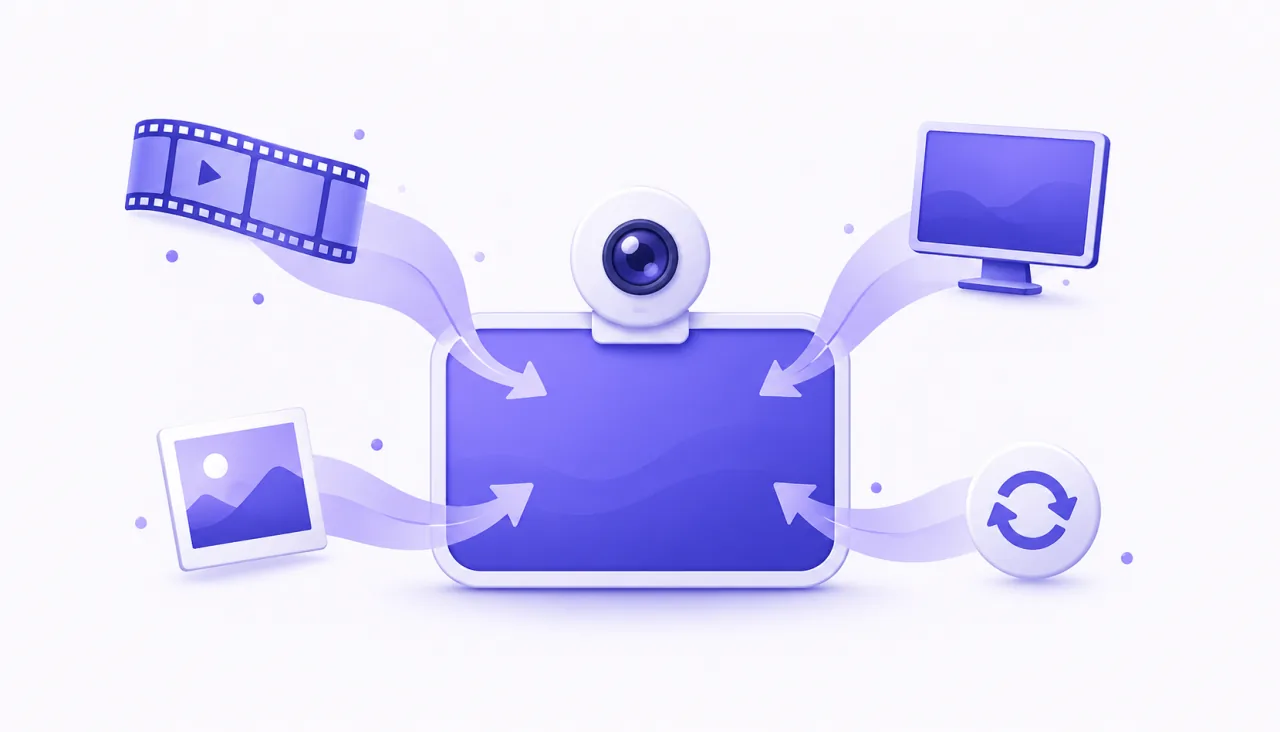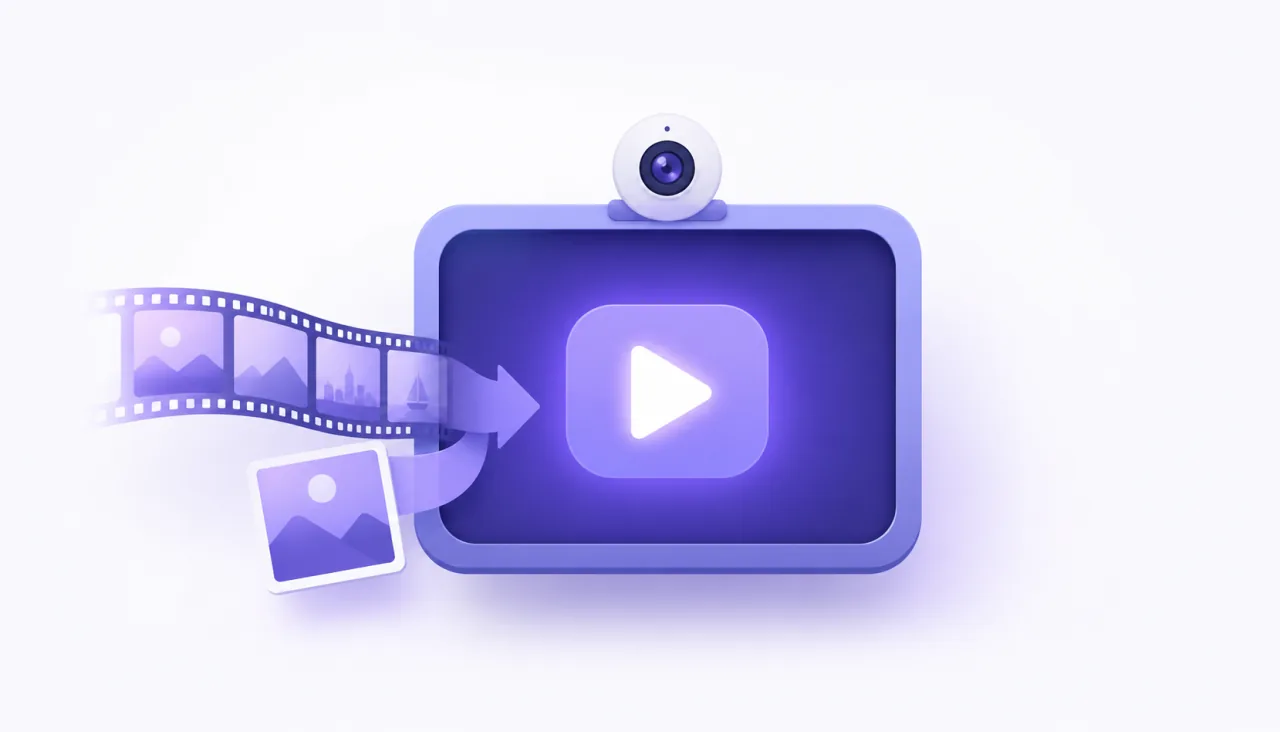
A fake webcam for Windows is a free app that plays a video or image as your camera, so Zoom, Teams, Meet, Discord and OBS see it like a real webcam. On Windows 10 and 11 the simplest one is FakeCam: download it, load a clip or photo, and pick FakeCam as your camera in any app.
"Fake webcam" and "fake camera" are just the everyday names for a virtual camera: a software camera whose picture comes from a file you choose instead of a lens. This guide is the practical part, how to get one running on your Windows PC, which apps see it, and how the free options compare. For the plain definition, see what a fake webcam is.
How to get a fake webcam on your Windows PC
FakeCam is free, needs no account, and installs in a minute.
- Download FakeCam and register its virtual camera. This is a one-time click that asks for administrator permission so Windows can add the camera device.
- Drag a video file or image into the FakeCam window. The preview shows exactly what your apps will receive.
- Press Play. Turn on Loop if you want a clip to repeat with no visible cut.
- Open your meeting app and choose FakeCam in its camera settings.
That is the whole setup. For a longer walkthrough with screenshots, see how to use a video or image as your webcam.
Does a fake webcam work on Windows 10 and 11?
Yes. FakeCam runs on both Windows 10 and Windows 11. This is worth checking before you pick a tool, because some newer fake camera apps require a recent Windows 11 build only. FakeCam still supports Windows 10, so an older PC works too. It is a lightweight desktop app, not a browser page or a phone app, so it needs a quick install rather than a website.
Which apps see a fake camera on your PC?
FakeCam presents a standard Windows DirectShow camera, which the large majority of desktop apps support. A few very new apps read only the modern Media Foundation camera type and may not list it.
| App | Works with FakeCam | Notes |
|---|---|---|
| Zoom (desktop) | Yes | Pick FakeCam in Settings > Video |
| Microsoft Teams (desktop) | Yes | Use the desktop app, and start FakeCam first |
| Google Meet | Yes | Choose FakeCam in the camera menu |
| Discord | Yes | Start FakeCam before opening Discord |
| OBS Studio | Yes | Add it as a video capture device |
| Skype | Yes | Select it in the video settings |
If your app does not list the camera, start FakeCam and press Play before opening the app, because most apps read the camera list only at launch. If it still does not show in Teams, see virtual camera not showing in Teams.
The best free fake webcam software for Windows, compared
There is more than one fake camera app for Windows. Here is an honest comparison of the common free options for the everyday job of playing a video or image as your camera.
| Software | Free | Pricing | Plays a video or image | Works in any app | Windows 10 |
|---|---|---|---|---|---|
| FakeCam | Yes | One-time PRO, no subscription | Yes | Yes | Yes |
| OBS Studio | Yes | Free | Needs a scene setup | Yes | Yes |
| ManyCam (free tier) | Partly | Yearly subscription | Yes | Yes | Yes |
| Webcamoid | Yes | Free | Yes | Limited | Yes |
The honest read: OBS Studio is free, but it is a full studio, so you build a scene, add a media source, set it to loop and then start the virtual camera. Webcamoid is free and open source, more of an effects suite than a quick file player. ManyCam plays a file too, but its free tier stamps a watermark and its full features sit behind a yearly subscription, which is why people look for a free ManyCam alternative. FakeCam is the lightweight, dedicated option: free to use, and a single one-time purchase unlocks the full experience, no subscription. If you do not mind the setup, OBS is the most complete free studio; if you want the fastest, simplest fake camera, a dedicated tool wins.
What can you use a fake camera on a PC for?
A fake webcam is a normal creative and professional tool, not a trick. Common, honest uses:
- Presentations and demos: play a pre-recorded product demo into a meeting instead of fumbling with screen share.
- Privacy: show a still photo or a calm looping background instead of your room when a camera is required.
- Software testing and QA: feed a known, repeatable video into any app that reads a camera.
- Stepping away: loop a short clip of yourself to hold your seat during a quick break on a call.
- Content and streaming: loop B-roll or branded footage as a camera source.
Is a fake webcam safe to use?
The software is safe: FakeCam runs entirely on your PC and sends only the file you pick, with nothing uploaded. Using one is fine for the honest purposes above. What you should not do is use it to impersonate someone or pass an identity check, and some exams and proctored tests forbid virtual cameras, so respect each app's rules. FakeCam does not add face filters and does not pretend to be another person; it simply streams the video or image you choose.
For most people who just want to play a video or show an image as their camera on Windows, a free fake webcam like FakeCam is the quickest way to do it. Download FakeCam and set it up in a couple of minutes.